Withdraw your Hyperliquid balance to your wallet
Still have USDC on Hyperliquid, or some USDH, a stablecoin that's no longer issued? Sell the USDH for USDC, then withdraw everything in one go to your wallet on Arbitrum.
- Signatures
- 2–3, all signatures, no gas
- Fee
- 1 USDC comes out of the withdrawal
- Time
- About 10 minutes of steps; the withdrawal lands in about 5
- You need
- Nothing. You don't need ETH on Arbitrum
Real-world tests
- 2026-10-27 Withdrew with the Binance wallet following this guide; the amount that arrived matched the estimate. An Account Type Update (Unified Account) window appeared midway. After confirming it, no transfer was needed, and the guide now covers that branch.
Know the drill? Everything on one card
Route: USDH is no longer issued → sell it on spot for USDC with a limit order at 0.995 or better → Withdraw to Arbitrum. 1 USDC fee, lands in about 5 minutes.
Account mode: unified accounts (the new default) withdraw directly. Older separate accounts first move spot USDC to Perps with Perps ⇄ Spot.
Your numbers: sell your USDH amount (2 decimals) USDH, withdraw your full balance USDC, about the withdrawal minus 1 USDC arrives.
Signatures: 2–3 EIP-712 signatures, no gas. Check two things: the domain is app.hyperliquid.xyz, and destination is your own address.
Gotchas: searching USDH also shows USDHL, so pick the right one. Tapping the order book on the right overwrites your price.
Open the official site in your wallet app
- Open your wallet app (for example, the Wallet tab in the Binance app) and make sure the wallet holding these funds is the one selected.
- Open in the wallet's built-in DApp browser. Include https://, or it gets treated as a search.
- Once it loads, check the address bar: the domain must be exactly app.hyperliquid.xyz. One extra letter or a missing dot means it isn't the real site.
If the page says your region can't use it (restricted jurisdiction), stop here. This guide doesn't cover getting around regional restrictions.
Typing the address brings up search results
Type the full address with https:// in front: .
The page says your region can't use it (restricted jurisdiction)
Stop here. This guide doesn't cover getting around regional restrictions.
You're not sure it's the official site
Check the address bar: the domain must be exactly app.hyperliquid.xyz. If it isn't, close the page and type the address yourself. Never use a link someone sent you.
Connect your wallet
Connecting only. No signature, and no money moves
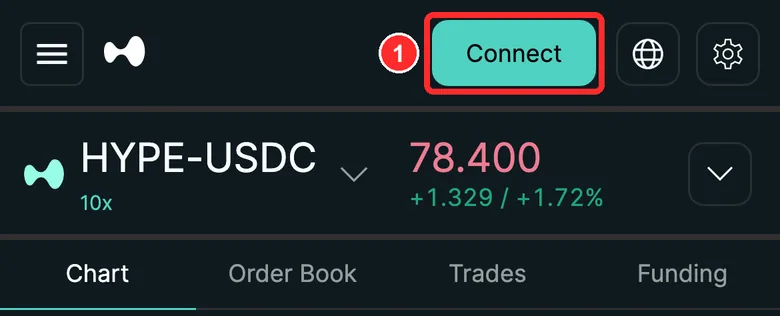
- Tap Connect in the top-right corner
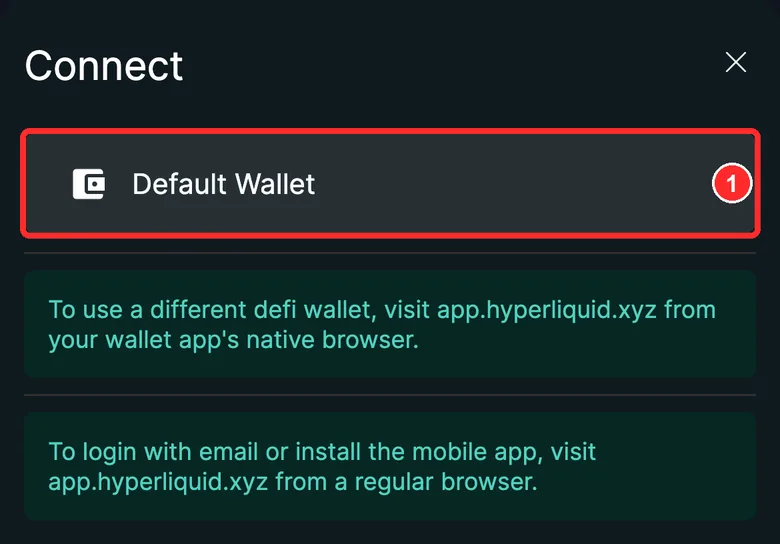
- Choose Default Wallet. Your wallet asks to connect: if the request comes from app.hyperliquid.xyz, tap Connect
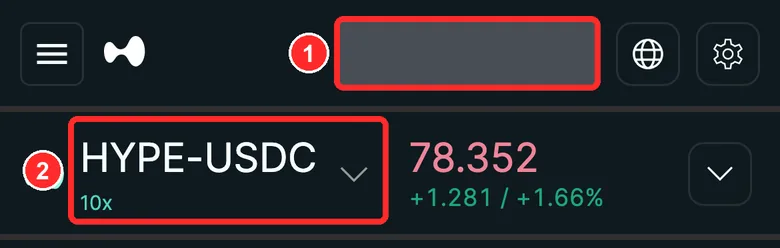
- Your address appears in the top-right (blurred here). It should be your own address
- Tap the market name on the left to open the list
You tapped Connect, but your wallet didn't ask to connect
Open the page in your wallet app's built-in DApp browser (step 1). A regular phone browser can't reach your wallet.
The address in the top-right isn't the one holding the funds
Switch to the right wallet in your wallet app, then connect again. If the address doesn't match, don't go any further.
The connection request doesn't come from app.hyperliquid.xyz
Tap Reject and close the page. It may not be the official site.
Find the USDH market
Only needed if you have USDH (this step through step 6)
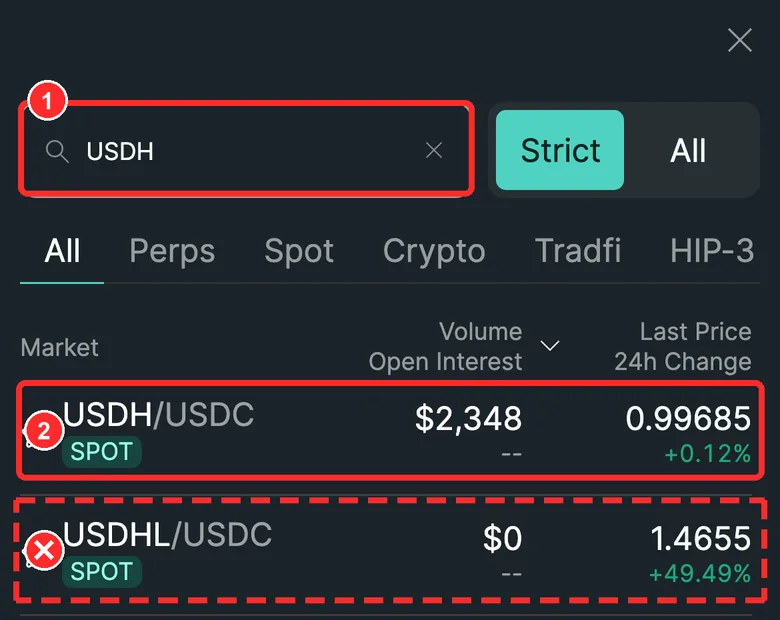
- Type USDH in the search box
- Tap USDH/USDC (marked SPOT underneath)
Don't tap USDHL/USDC: it's a different coin, one letter apart
Both USDH and USDHL show up
Pick USDH/USDC, the one marked SPOT. USDHL is a different coin; the names differ by one letter.
USDH doesn't show up
Check the spelling (U-S-D-H). Still nothing? Tap All to the right of the search box and search again.
Open the sell panel and switch to a limit order
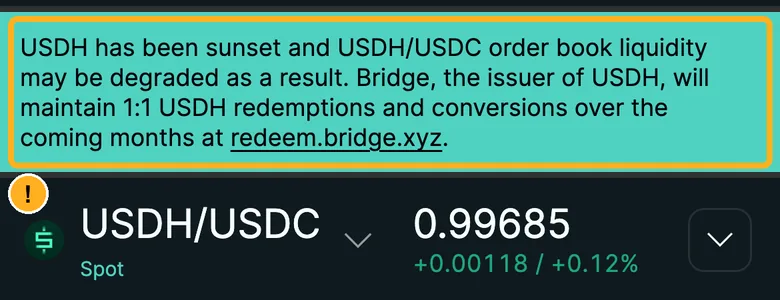
The yellow box is Hyperliquid's own notice: USDH is no longer issued, so buyers on this market will keep thinning out. The sooner you sell, the better

- Tap Trade at the bottom
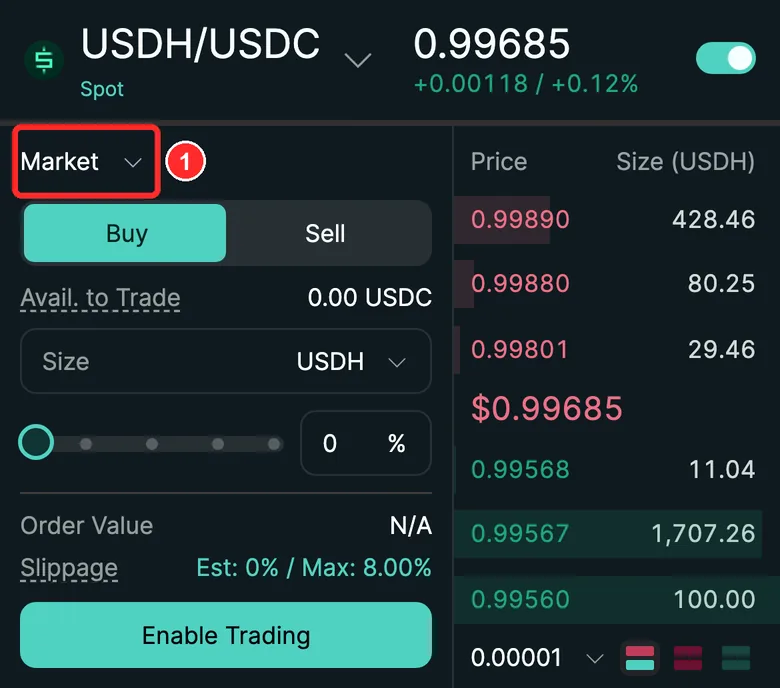
- Tap the small arrow next to Market in the top-left
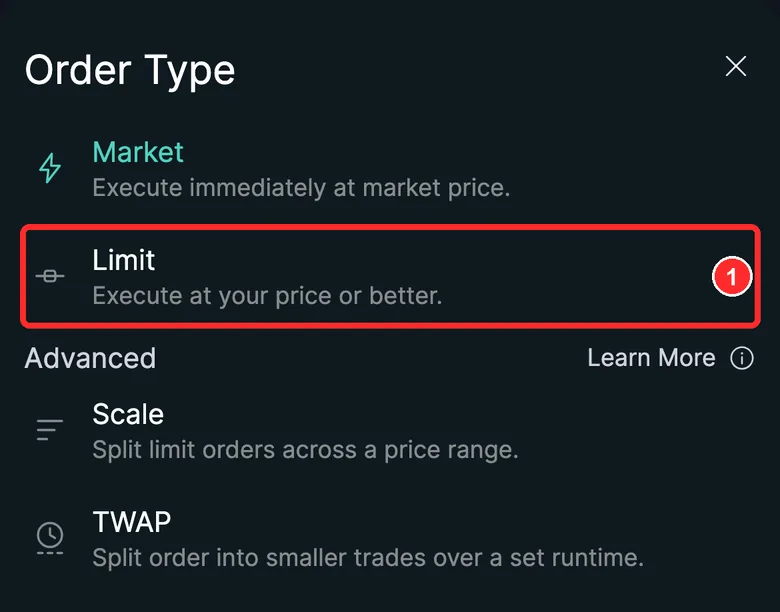
- Choose Limit (a limit order only fills at your price or better)
There's no Limit in the drop-down
Tap the small arrow next to Market in the top-left, where the red box is in the screenshot above.
Fill in the sell order
Fill it in now; you'll enable trading next
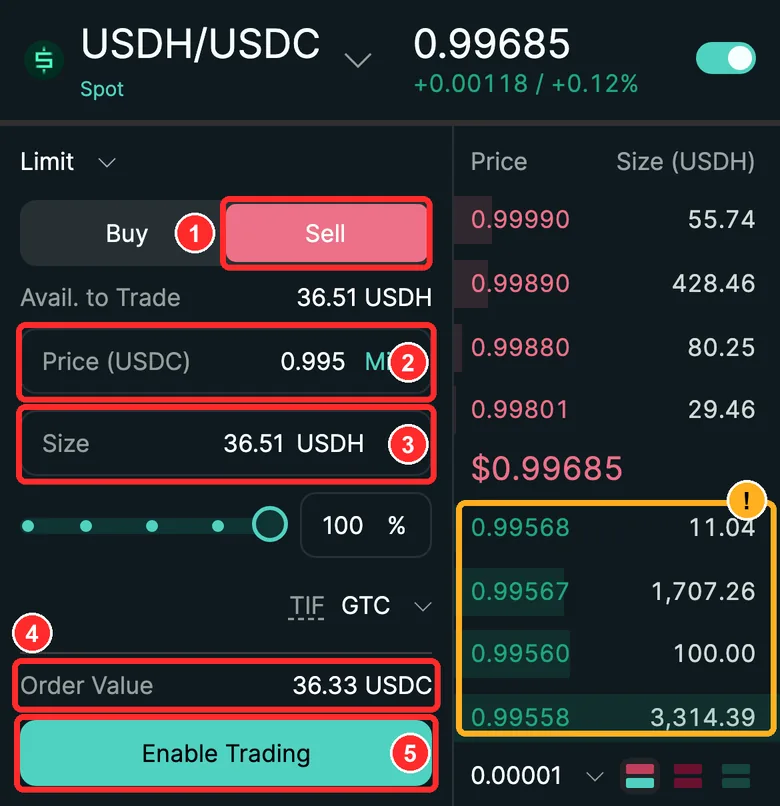
- Tap Sell
- Price: 0.995
- Amount: your USDH amount (2 decimals) (the screenshot shows sample numbers)
- Glance at Order Value: about amount × 0.995 USDC, the least you'll get
- Tap Enable Trading
The green numbers on the right are other people's buy orders. You'll sell into them, usually at better than 0.995. Don't tap them: tapping one overwrites the price you entered.
Order Value is way off from the number here
The price or amount is probably wrong: price 0.995, amount your USDH amount (2 decimals). If you tapped the green numbers on the right, your price was overwritten; enter it again.
It says your balance isn't enough for that amount
Some of your USDH may already be locked in an open sell order. The live check above shows how much you can actually sell. If you haven't added your address, add it above first.
The button already says Place Order, not Enable Trading
Trading was enabled before. Skip "Enable trading" and go straight to "Place the sell order".
Enable trading
This step grants permission; it doesn't move funds by itself After you sign, this order key can place orders for you on Hyperliquid without your wallet popping up. Check the card line by line, and tap Reject if anything doesn't match.
Signature 1
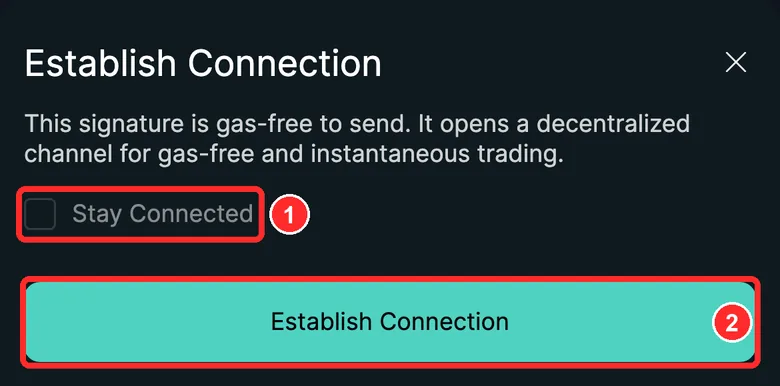
- Leave Stay Connected unticked
- Tap Establish Connection. Your wallet asks for a signature: check it against the card below
Before you sign, check 3 things
After you tap Establish Connection, your wallet shows a signature request. Compare it with this card and tick each line as you check it.
See any of these? Tap Reject right away
- It asks you to send money, or shows an amount
- It mentions Permit, or approving (Approve) a token
- It doesn't come from app.hyperliquid.xyz
These are normal
- agentAddress is a random address that changes every time: it's the temporary order key the page creates
- chainId may show 42161 or 56. Either is fine; it follows your wallet's current network
- verifyingContract is all zeros. Also fine
The signature request doesn't mention ApproveAgent
Tap Reject. If the card doesn't match, don't sign.
You signed, but nothing changed on the page
Wait a few seconds. If the button still doesn't say Place Order, refresh the page, reconnect your wallet and tap Establish Connection again. Signing a second time is normal.
The request shows chainId 42161 or 56
That's normal. It follows your wallet's current network and changes nothing.
Place the sell order
This step moves your funds This sell order on Hyperliquid is signed by the order key you approved earlier, so no wallet pop-up appears. DeFiExit never touches your money.
Your wallet won't pop up for this one
- Once you've signed, the page says Established connection, and the Enable Trading button turns into Place Order.
- Check once more: Sell / price 0.995 / amount your USDH amount (2 decimals) (enter them again if they were cleared).
- Tap Place Order. If a Confirm Order box appears, check the same three things and confirm. The page's order key signs this one, so your wallet stays quiet.
- When it fills, you should see an Order filled message. Under Balances, USDH drops to less than 0.01 and USDC goes up by about what the sale brings in. Open Orders is empty.
If the order is still sitting under Open Orders, the bid has dropped below 0.995. Don't place another order. Tap "Stuck?" in the top-right for a live check.
The order just sits there and doesn't fill
The bid is below your price right now. Don't place another order. The live check above works out your options from today's bids.
It says the order is too small
Hyperliquid has a minimum order size (about $10). If your USDH is below that, it can't be sold. Leave it and go withdraw your USDC.
A tiny bit of USDH is left under Balances after selling
Amounts only go to two decimals, so less than 0.01 left over is normal. It doesn't affect the withdrawal.
Move your spot USDC to the perps account
This step moves your funds After you sign in your own wallet, Hyperliquid carries it out. DeFiExit never touches your money.
Signature 2
Only for older separate accounts; unified accounts skip this
Check the Account page first. If the heading says Unified Account Summary and there are only Deposit / Withdraw buttons, you have a unified account: skip this step and go straight to the withdrawal.

If you see Unified Account Summary, it's a unified account (sample image; ignore the numbers)
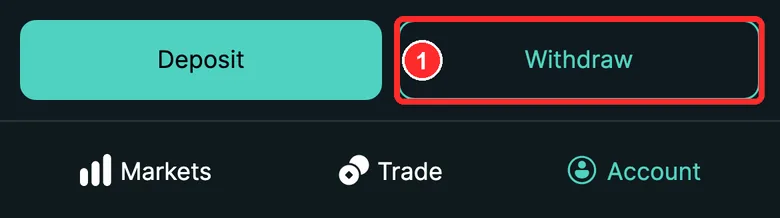
A unified account only has Deposit / Withdraw: tap Withdraw and jump to the next step
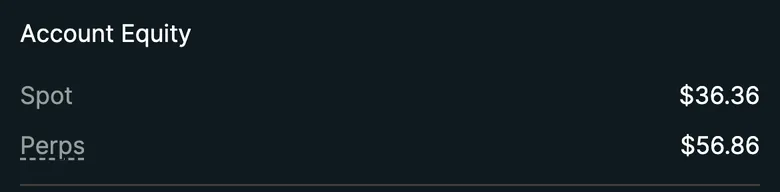
Separate accounts show two lines, Spot and Perps: money in two accounts
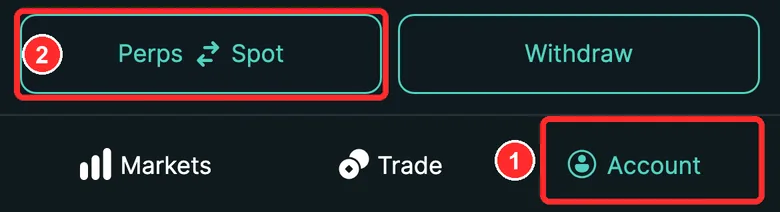
- Tap Account at the bottom
- Tap Perps ⇄ Spot
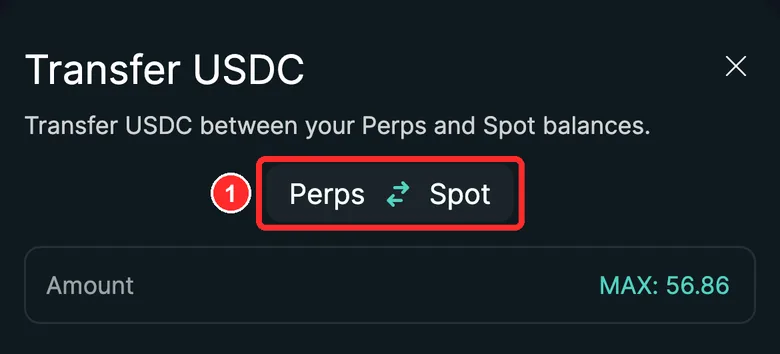
- Tap this middle button to flip the direction
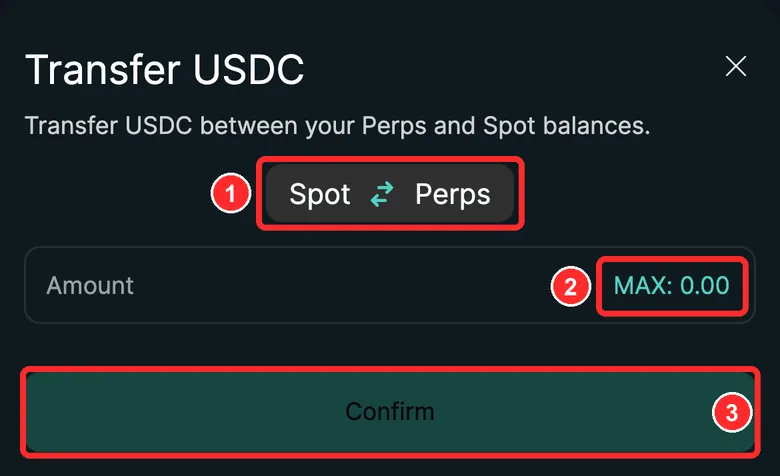
- Make sure it now reads Spot → Perps
- Tap MAX (the screenshot was taken before selling, so it shows 0.00; yours should be about what the sale brings in)
- Tap Confirm. Your wallet asks for a signature: check it against the card
Before you sign, check 3 things
After you tap Confirm, your wallet shows a signature request. Compare it with this card and tick each line as you check it.
See any of these? Tap Reject right away
- destination isn't your own address
- It mentions Permit, or approving (Approve) a token
- It doesn't come from app.hyperliquid.xyz
These are normal
- It's a signature only, with no fee
There's no Perps ⇄ Spot on the Account page
If the heading says Unified Account Summary, it's a unified account. No transfer needed; go straight to the withdrawal.
MAX shows 0.00
First make sure the direction is Spot → Perps (the middle button flips it). If it's still 0, there's no USDC left in spot; go straight to the withdrawal.
The signature request shows a destination that isn't your address
Tap Reject right away.
Withdraw to Arbitrum
This step moves your funds After you sign in your own wallet, Hyperliquid carries it out. DeFiExit never touches your money.
Last signature
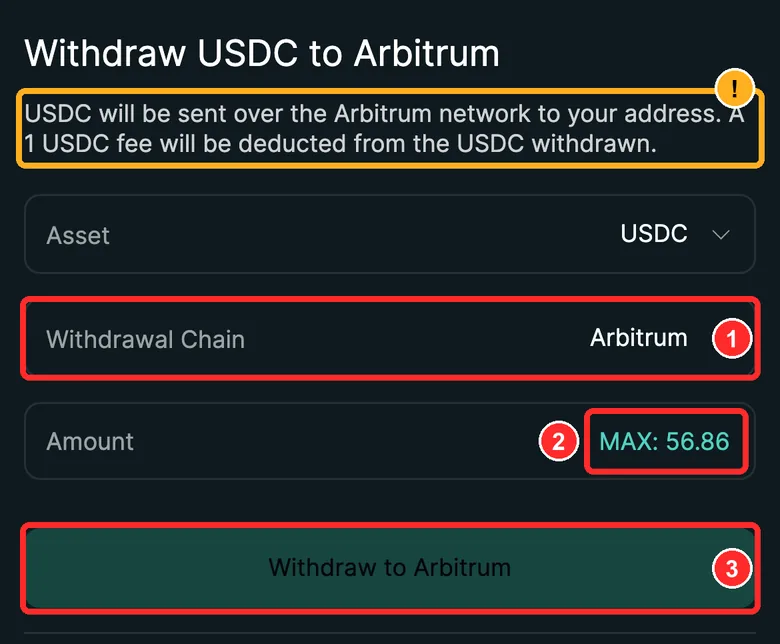
Hyperliquid says the 1 USDC fee comes out of the withdrawal
- Leave the asset as USDC and the chain as Arbitrum
- Tap MAX: it should be about your full balance (the screenshot shows a different number)
- Tap Withdraw to Arbitrum. Your wallet asks for a signature: check it against the card
Before you sign, check 3 things
After you tap Withdraw to Arbitrum, your wallet shows a signature request. Compare it with this card and tick each line as you check it.
See any of these? Tap Reject right away
- destination isn't your own address
- It mentions Permit, or approving (Approve) a token
- It doesn't come from app.hyperliquid.xyz
These are normal
- It's a signature only, with no gas: Hyperliquid sends the Arbitrum transaction for you
- time is a 13-digit number. It's a timestamp
MAX shows less than the number here
Open orders and positions tie up part of your balance. The live check above lists where every part of your money is.
The Withdraw button won't respond
The withdrawal has to be more than the 1 USDC fee. Smaller amounts can't be withdrawn.
The signature request shows a destination that isn't your address
Tap Reject right away.
Check that it arrived
Arrival check
- How long
- Hyperliquid says within 5 minutes
- Where to look
- Your wallet app → Assets → USDC → the Arbitrum line
- You should see
- About the withdrawal minus 1 USDC more
- On-chain record
- Sent from 0x2Df1…3dF7 (Hyperliquid's official bridge) to your address, as native Arbitrum USDC (0xaf88…5831)
- Not there?
- After 30 minutes, don't withdraw again. Take a screenshot and ask us
Once it arrives, you're done
You can't see the USDC in your wallet
Make sure you're looking at USDC on the Arbitrum network. The live check above looks up this withdrawal on Arbitrum directly.
1 less arrived than you withdrew
That's the 1 USDC withdrawal fee. Normal.
It's been more than 30 minutes and nothing has arrived
Don't withdraw again. Look at the live check above. If it can't find the arrival, or it doesn't match, take screenshots to Hyperliquid's official support (below).